Monthly maintenance updates will occur on Thursday, March 19th, 5:00 p.m. - 10:00 p.m. This includes our monthly mandatory security patches for all services. Users may experience intermittent downtime.
Help Desk Hours for March 2026
Spring Break Hours
Saturday, March 21st & Sunday, March 22nd: Closed
Monday, March 23rd - Friday, March 27th: 8:00 a.m. - 5:00 p.m.
Saturday March 28th & Sunday, March 29th: 1:00 p.m. - 5:00 p.m.
Spring Holiday Hours
Friday, April 3rd & Saturday, April 4th: Closed
Sunday, April 5th: Noon - 5:00 p.m.
A New Authentication Page is Coming Soon
The UT System authentication page will be getting a new look! Starting May 27th, you will notice an updated design that enhances accessibility, security, and user experience on all UT System services, such as DASH, Office 365, Zoom, and Adobe platforms. Beginning on this date, you will begin to use your full UTM email to login to these services.
To align with the UT System, UT Martin will implement this authentication change on the same date for all UTM services, including Portal, Canvas, and Google. Here's what you can expect:
Fresh New Look: The sign-in page will have a clean design.
New Sign-In Experience: When you visit the landing page, you'll be quickly redirected to Microsoft's authentication site for a seamless login process.
How to Sign In
Use your UPN as your username. Your UPN is the email address used to sign in to UT services, such as email, typically in this format:
Faculty and Staff: Use NetID@utm.edu
Students: Use NetID@skyhawks.utm.edu or NetID@ut.utm.edu
Signing in with your UT Microsoft account will present the following screen:
You will also use the sign-in for these widely used apps
Adobe Creative Cloud
Canvas
DASH
LinkedIn Learning
MyUTM
Qualtrics
RingCentral
Software Distribution Site
VPN
Zoom
Title II Compliance: New Resources
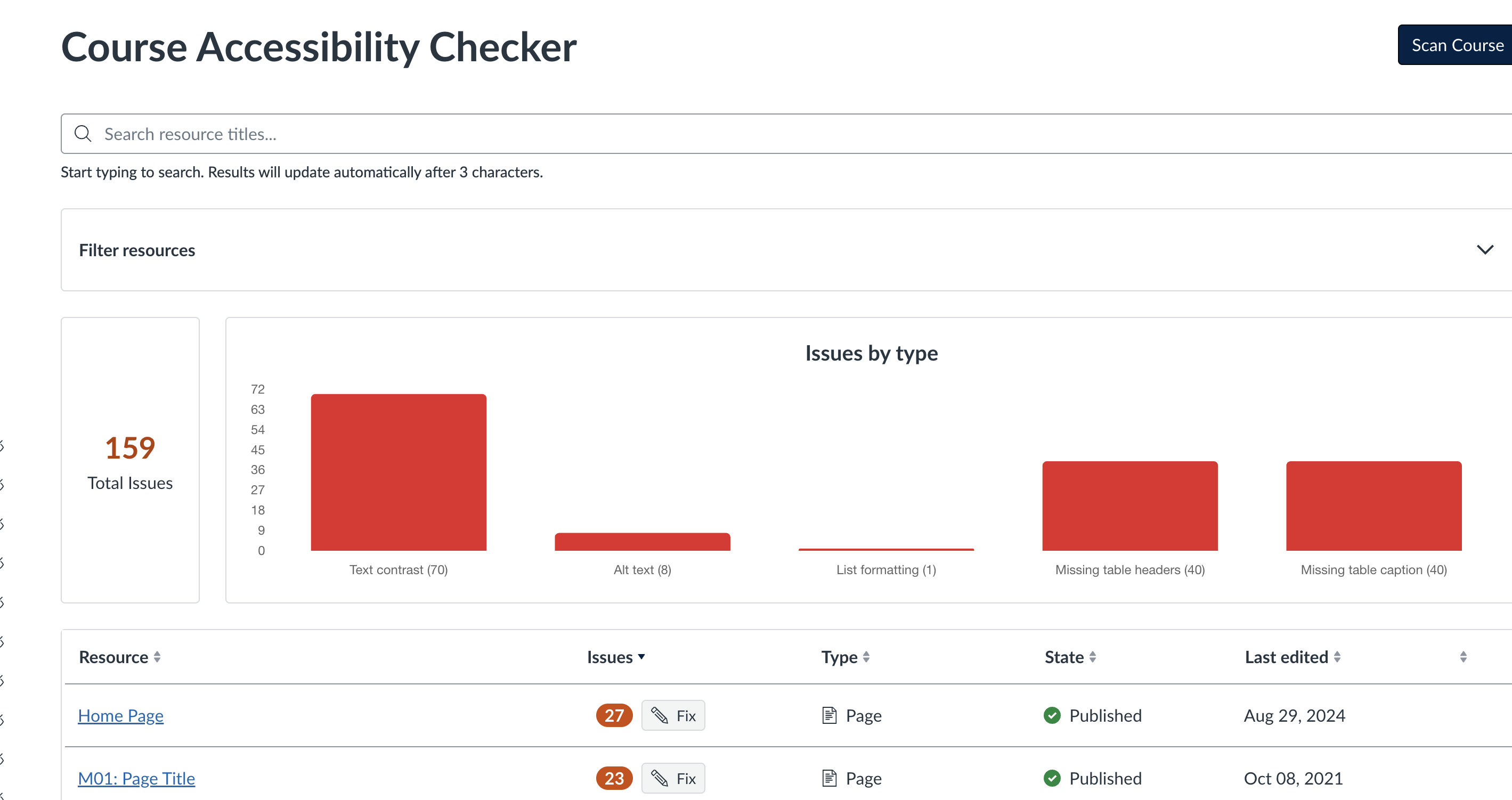
New Canvas Accessibility Checker
On Wednesday, 2/25, Canvas released a new Accessibility tool that appears in your Course Menu. When faculty click that button, a scan of items created in Canvas will begin. (See image below.) The scan will identify issues that are not ADA compliant, and it will suggest remediation. Does this tool replace the Accessibility Checker already in Canvas? No, it does not. The tools are complementary. The Rich Content Editor Accessibility Checker is still useful when faculty create content within the RCE in Quizzes, Assignments, Discussions, and Pages.
Studio Auto-Captioning and Auto-Publishing
One of the most important accommodations is captioned videos. Canvas Studio is a video and screencast tool available to all faculty and students. Faculty now have the ability to Auto-Publish, Auto-Caption, and Assisted Caption Editing videos created in Canvas.
How to Enable Auto-Captioning, Auto-Publishing, and Assisted Caption editing of Studio recordings
From the global navigation menu, click on the Studio icon.
At the top of the Studio page, click the Settings button.
Enable Auto-Captioning by toggling on Enable Auto-Captioning to automatically create transcriptions for new media uploads.
Enable Auto-Publish by toggling on Enable Auto-Publish for Automatic Captions. This skips the step of manually reviewing and publishing captions before they become visible, though it is recommended to review them for accuracy.
Enable Assisted Caption Editing by toggling on Enable Assisted Caption editing This feature flags potential caption inaccuracies with red exclamation marks, allowing you to quickly review and edit them in the Captions tab of your media.
SharePoint
The new Title II guidelines require that UT Martin SharePoint sites also be accessible to faculty, staff, students, and external users (i.e. Teams SharePoint Sites). If you are the owner of a SharePoint site, please check out this resource on how to use the Accessibility Assistant.
New Features in Akindi
Akindi is UTM's web-based assessment system that automates the creation and grading of bubble-sheet in-person tests and syncs with your Canvas class roster to create personalized answer sheets. Akindi recently expanded the functionality of this tool by allowing faculty to create up to six versions of the same test by scrambling the answers and/or the questions.
Likewise, question banks are an especially helpful tool for randomizing questions on online tests, but the creation of the banks can be time-consuming. Using Akindi, faculty can type questions with correct answers in Word. Instructors can denote the correct answers with bold type, an asterisk *, highlighting, or a different text color. The file is then ready to upload to Akindi where it will be processed into a QTI format that can be ingested to Canvas. For more information, visit the Akindi website or contact the ITC to learn more about Question Banks in Canvas Quizzes.
Working Remotely? So Does RingCentral!
Employees working off campus can continue to make and receive calls using their campus phone number through the RingCentral app. The app works on both computers and mobile devices, letting you make calls as if you were in your office.
With RingCentral, you can:
Make and receive calls using your campus number.
Check voicemail.
Access your call history and contacts.
Stay connected from anywhere with an internet connection.
If you haven't installed the app yet, we encourage you to do so and keep your campus communications seamless while working remotely.
Title II Compliance Workshops
The Accessibility Resource Center, the Center for Teaching and Learning, and the Instructional Technology Center will host their second training for Title II Compliance on Tuesday, March 17th, 3:30-4:30p.m., in Room 215 of the Meek Library. The session will be offered in-person and online. Log in to Runway to register and to access the Zoom link.
ITC Training Schedule for March
To register for sessions, log in to Runway. If you need individual assistance, contact the ITC at 731.881.7877.
.jpeg)